 MyGearTracker
Returning gear
Bring gear back; report damage, missing parts or loss.
Return marks gear as back, or records damage, missing parts or loss. Open Return from the menu, from an item, or from Out now.
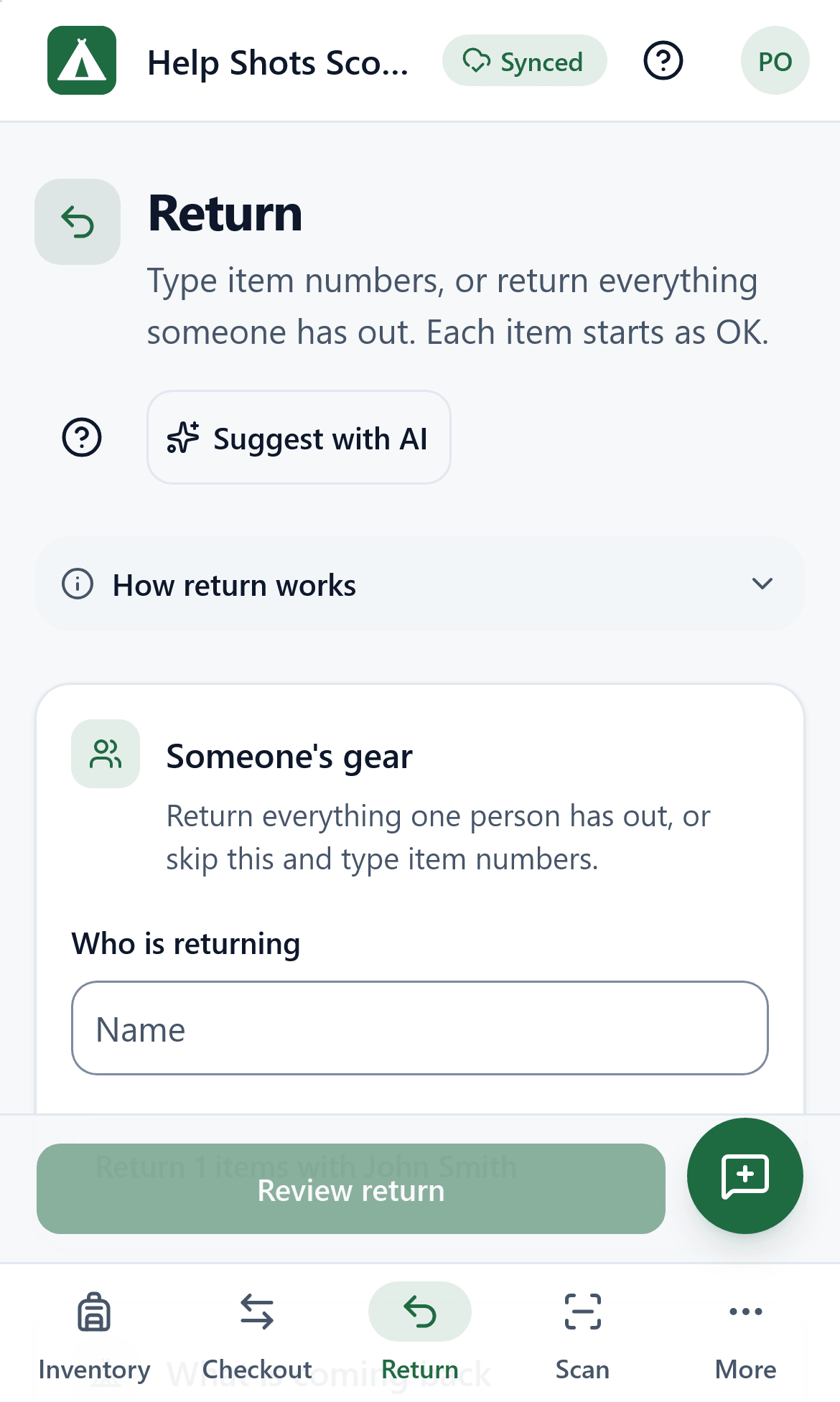
Choose what is coming back
Type item numbers such as 45 or 45, 46, or Browse inventory. Ambiguous numbers ask you to pick.
Under Someone's gear, search for a person who currently has items out and return all of theirs at once. You can skip that and type numbers only.
From Scan (one straightforward item)
When Scan sends you here with a single checked-out item and Condition stays OK—no packed contents to review, no return checklist, default pooled quantity—the screen is shorter:
- The item you scanned
- Condition — OK by default; change it if something is wrong
Tap Return once when everything is OK. Cancel (outline) takes you back to Scan.
Choosing Damaged, Missing parts or Lost, or any situation that needs a checklist or container review, opens the full return screen and Review return before you confirm.
Condition on each item
Each item starts as OK. Change the condition when something is wrong:
- OK — back as expected; becomes Available
- Damaged or Missing parts — opens a repair ticket; you must say whether it is still usable
- Lost — marks the item lost
If an item is not checked out, choose damaged, missing parts or lost to report it, or remove it from the list.
Damage details and photos
For damaged or missing parts, answer Still usable?
- No — needs repair — the item goes to In repair
- Yes — still usable or Yes — only cosmetic — the item stays Available with an open ticket
Give the ticket a title (a default is filled in). Notes are optional. Add photos from the camera or a file when you have permission to edit inventory; uploads need a connection.
Pooled gear, containers and checklists
- Pooled gear — choose how many units are coming back. Partial returns record the returned count and leave the remainder out. See Pooled gear and consumables.
- Containers — returning a container reviews all packed contents together. You can mark individual items as damaged or missing parts while returning the rest as OK. See Kits and containers.
- Checklists — items with return verification steps must be inspected before confirming. Required checklist steps block confirmation until answered. See Verification checklists.
From the Return menu
When you add items from the menu or need checklists, containers, or damage details reviewed, tap Review return. The confirm step names each ticket that will open and whether the item will be Available, In repair or Lost. Then tap Return.
After success you can open each item, or Return more.
Find overdue gear
Out now shows everything still checked out. Filter to Overdue when a due date has passed—see the Out now guide.
Ready to try it with your own gear?
Create an account and follow the steps above with your own group. The 7-day free trial needs no card.
Create an account