 MyGearTracker
People
Add people, invite them, hand over their gear, merge duplicates, and remove or restore people.
People are everyone who might borrow gear—youth, leaders and parents. A person only needs a name to check things out. An app account and a role are optional.
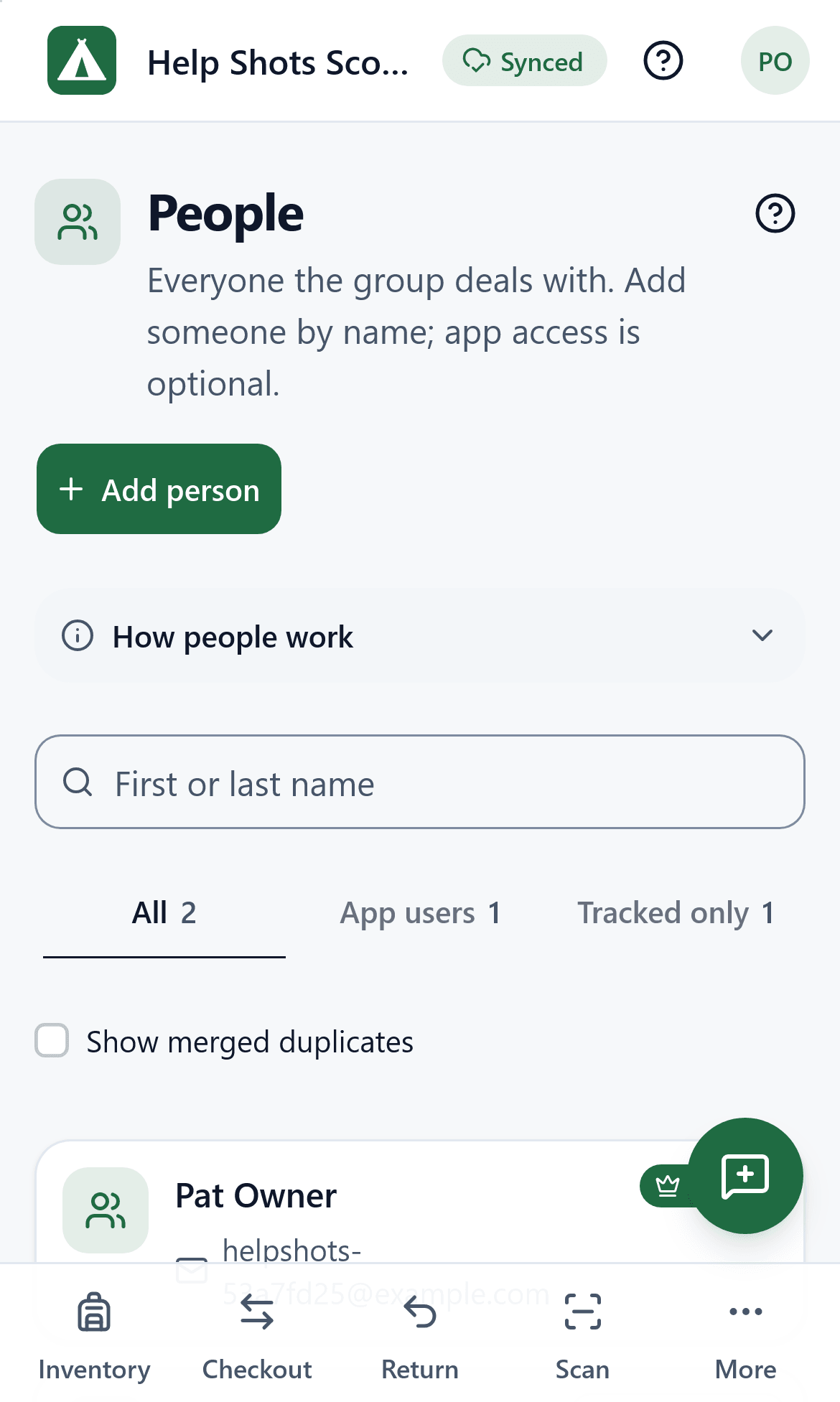
Quick add
On the People screen, tap Add person. Enter a first name (a last name is optional, so "Rain" on its own is fine) and a Section, unit or team if you like, then save. The new person opens so you can invite them or edit more details.
Not in People yet while you are checking out or handing out gear? Type their name in the person search and tap Add. One name, such as Rain, is enough. They are added by name only, ready to pick, and you can fill in details later from People.
People is a compact list: each row shows the person's name, their access (such as Tracked only, Member or Invite pending) and their section, and tapping a row opens them. Anyone without app access has Invite on their row. Search and the All / App users / Tracked tabs help you find someone when the list grows. Open Filters and turn on Show merged duplicates if you need a record that was merged away, or Show removed people to find someone who was removed from the group.
Invite someone
In People, tap Invite on their row (or open them and tap Invite on their record, beside Access). Enter their email and pick a role:
- Member — day-to-day checkout and return
- Admin — inventory setup and people work
- Read-only — view gear and check items in and out
Only the group owner and admins can make someone an admin. If you manage people through fine-tuned access, you can give the Member and Read-only roles.
They get an email with a link. Until they accept, they stay invited on this device. Invitation links stop working after 24 hours. Nobody is invited as owner; the owner is the person who created the group.
A role only counts once someone has an account or an invitation. If an older import gave someone a role without inviting them, they show as tracked only, get no leader emails and aren't offered as a repair assignee until you invite them.
Invite several people at once
On the People screen, tap Select beside the search box, tick the people to invite, then open Actions for selected and choose Invite selected. The window says how many people get an invitation. Each one joins as a Member; change a role later on their page. People without an email, and people who already have access or an invitation, are skipped. A group can send 100 invitations a day, so one go invites at most 100 people; the window says so when you select more, and you can invite the rest tomorrow. Tap Cancel selection to leave without inviting anyone.
Share a join link
A join link lets people ask to join your group without you typing in their email. Only owners and admins can make one.
- Open People, then Join link.
- Choose Turn on join link.
- Choose Copy link, or let someone scan the code on your screen. Send it in a group chat or print the code.
Opening the link asks the person to sign in or create an account, then to give their name. Nothing happens until you approve: they are not in the group yet.
Want a fresh link? Choose Make a new link. The old one stops working. Choose Turn off to stop new requests; requests already waiting stay in the list.
Approve or decline a request
When someone asks, People shows a Join requests list and Home shows how many are waiting.
- If the name is already in your people, the request says Matches that person, so you can see it is them.
- The group owner also gets an email when someone asks to join, with a button that opens this list.
- Choose Approve, then pick a Role from the list: Member (the first choice), Read-only, or Admin. Only the owner and admins see Admin. You can change the role later.
- Choose Decline to turn the request down. The person is not told.
Approving and declining need an internet connection.
Cancel an invitation
Their email didn't arrive? Open the person, tap More, then Resend invite.
Invited the wrong person, or they no longer need the app? Open the person, tap More, then Cancel invitation. The link in their email stops working right away. An email that was already sent can't be unsent, but opening the link only says the invitation is no longer valid. The person stays in the group as a tracked person, and you can invite them again later with Invite.
Change someone's role
Open the person and look under Permissions. Managers can pick a new role (Member, Admin, or Read-only); only the owner and admins see Admin in the list. The list below the role updates right away so you can see what that role can do. You cannot change your own role, and the group owner's role cannot be changed here.
Fine-tune access
Optional. On the same Permissions section, open Fine-tune access to grant or remove individual permissions beyond the role. You can only grant permissions you already have. Use Clear fine-tunes to go back to the role defaults, then Save fine-tunes. Changing a role keeps any fine-tunes you already saved.
Merge duplicates
If the same person appears twice, open one record, tap More, then Merge. Pick the other record as the duplicate. History and open loans move to the person you keep. Merge carefully; it is hard to undo.
Hand over all gear
When someone passes everything they hold to another person (a leader stepping back, a Scout moving up), open their page, tap More, then Hand over all gear. It shows only when they have gear out.
- Check the list under What moves. Pooled gear moves with the same number of units.
- Under Who takes it, pick the person who has the gear now.
- Tap Hand over to move it all in one step.
Due dates stay the same. Out now, both people's pages and their history show the move. A uniform deposit the first person paid stays on their record, so it can still be refunded or kept. If their gear changed in the meantime (something was returned on another phone), nothing moves and you're asked to check the list again.
Remove someone
Use this when a youth ages out or a leader moves on. Open the person, tap More, then Remove from group. The confirmation says what happens:
- They disappear from People, the borrower pickers and the Gear Assistant.
- Their past checkouts, returns and history keep their name, including any uniform piece given to them to keep.
- If they used the app, they lose access on every phone. An open invitation is cancelled too.
You can't remove the group owner or yourself.
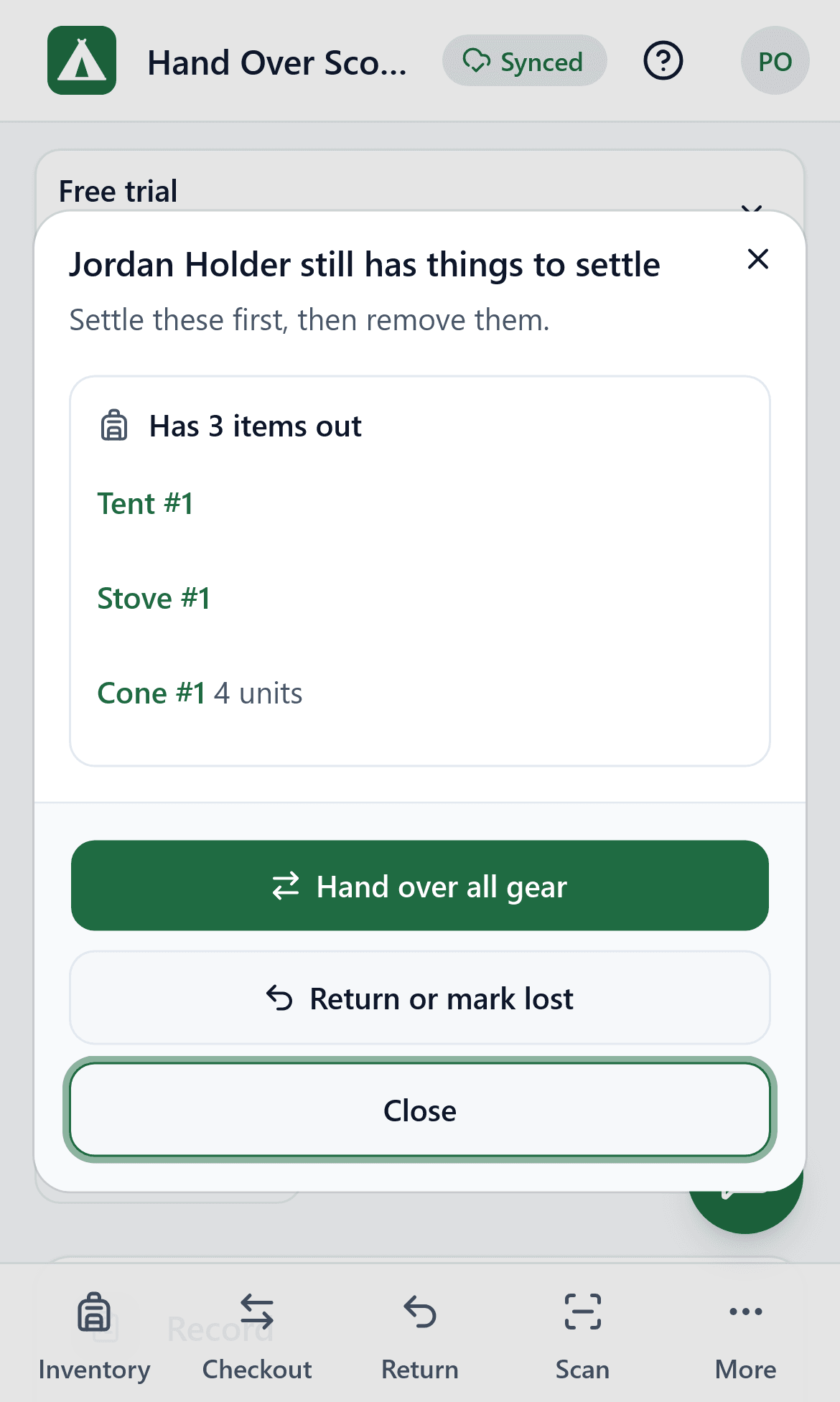
Someone who still has gear out, such as a lent uniform piece, can't be removed yet. The window lists what they hold, with links. Tap Hand over all gear to give it all to someone else; when that's done, you're back on their page and can finish removing them. You can also tap Return or mark lost. A deposit that is still held, an upcoming reservation they are the contact for, or a repair ticket assigned to them also has to be settled first.
Bring someone back
On the People screen, open Filters and turn on Show removed people. Removed people are listed under Removed people with a Removed badge. Open one and tap Restore. Typing a removed person's exact name in a picker (Checkout, for example) also offers Restore. They come back with their history, but without app access: tap Invite on their record to invite them again if they need it.
Roster import
Managers can bring people in from a registration export. On the People screen, open More and choose Import roster CSV.
The import takes a spreadsheet from your registration tool (RAMP, TeamLinkt, TeamSnap, and similar). Upload or paste the file, fix any errors in the preview, then Confirm import. Importing invites nobody: no one gets an email or app access, and everyone comes in as tracked only. When you're ready, invite people with Invite on their row, or several at once with Invite selected (see Invite several people at once above). Download sample CSV in the import window gives you a file with the right columns.
The preview has a Status column: Ready means the row imports as it is, and anything else is a note or an error to look at.
Columns
- Names. Use first name and last name columns, or a single name column. If the file has both, the first and last name columns are used (a file with only a first name column works too) and the name column is listed under ignored columns. In a single name column, "Lee, Sam" is read as last name, then first name; otherwise the last word is the last name. The last name can be blank: a one-word name is added with just a first name. Everyone needs a first name.
- Email is optional. It is how a row is matched to someone already in the group. Each email belongs to one person: siblings who share a parent's email are added without it.
- Team (or Section, unit, patrol or division) is saved on the person.
- Phone and notes are optional.
- Role is not imported. A Role column (the group's own export has one) is listed under ignored columns: you pick each person's role when you invite them.
What the preview checks
- Already in the group. A row with the same name and email as someone in the group is skipped. So is a row with the same name as one person, unless the row and that person have different emails. A skipped row never changes that person.
- A shared family email. Each email belongs to one person. When a row's email already belongs to someone with a different name (in the group, or on an earlier row of the file), the row is still added, without the email, and the preview names who already uses it. This is how siblings who share a parent's email come in. Add their own email later if they get one.
- A name that matches several people. When more than one person in the group has the name and the row's email doesn't pick one of them, the row shows an error. Add the person's email to the row.
- The same name twice in the file. Two rows with one name are both added only when each has its own email. Otherwise the second row shows an error: give each row an email, or remove one.
- A namesake in the group with a different email. The row adds a second person, and the preview says so. Reviews then offers to merge them if they turn out to be the same person.
- Merged records. A row with the email of a record you merged into someone else is skipped when its name matches that record or the person you kept. With another name, the row is added without the email, like a shared family email.
- Lengths. Names and team are up to 100 characters, phone up to 40 and notes up to 4,000.
- Size. One import takes up to 1,000 people. Split a bigger file and import it in parts.
Rows with notes but no errors still import. Confirm import stays off until every error is fixed.
Roster export
On the People screen, open More and choose Export roster CSV. It downloads everyone in the group with the same columns plus an app access column (tracked_only, invited, or signed_in). A cell that starts with =, +, - or @ gets an apostrophe in front, so a spreadsheet shows it as text instead of running it. Import removes that apostrophe again.
If your group's trial or subscription has ended, you can still export the roster. Import roster CSV then explains that importing is locked until someone subscribes.
Import and export need an internet connection. You can preview an import on this device while offline, but Confirm import waits for a connection.
Ready to try it with your own gear?
Create an account and follow the steps above with your own group. The 7-day free trial needs no card.
Create an account