 MyGearTracker
Checking out gear
Pick a borrower, type item numbers, set a due date and confirm.
Checkout records who is borrowing which items and when they are due. Open Checkout from the menu, from an item (Check out), or from a person (Lend gear).
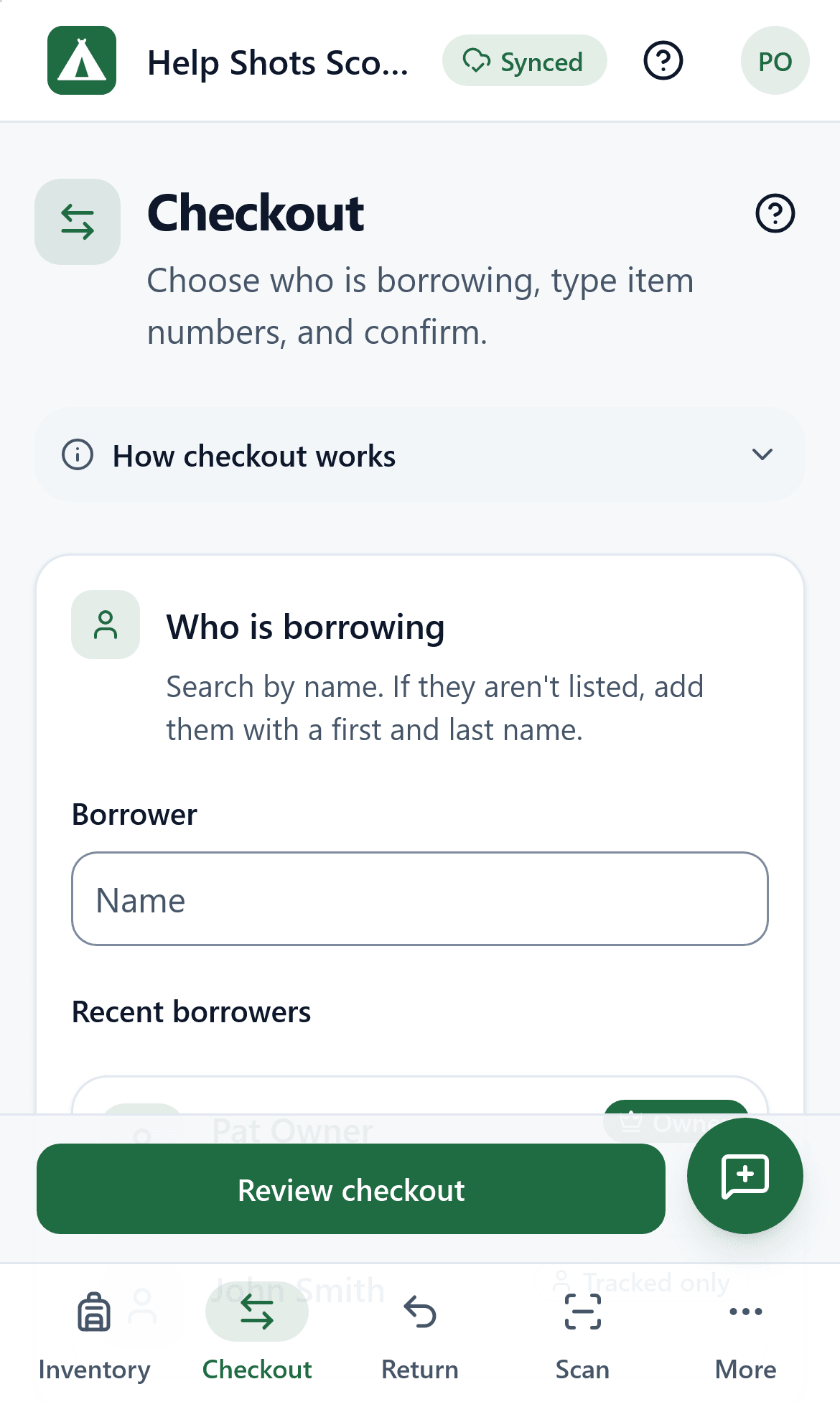
Pick who is borrowing
Under Who is borrowing, type a name. Recent borrowers and matching people appear as you type. Tap the person you mean.
Not in People yet? Type their name and tap Add (for example, Add “Sam Lee” as a new youth member). That adds them on the spot, by name only, and picks them—no invite required. A message links to their page so you can add details, and you can invite them later from People. If the name is one you removed earlier, the last row says the person was removed and offers Restore: it opens their page, where Restore brings them back, instead of adding a second person with the same name.
Add items by number
Under What they're taking, type item numbers such as 45 or a list like 45, 46. Tap Add. You do not need a QR code; the number on the gear is enough.
If more than one item matches, the app asks you to pick—it never guesses. Use Browse inventory when you want to search by name or tag instead.
Remove a chip if you added the wrong item. Inactive or already-out items block the review; items in repair warn you but can still go out.
Due date and notes
Due date defaults to In a week. You can also choose Today, End of weekend, or Custom. Notes are optional and stay on the loan.
Pooled gear, containers and checklists
- Pooled gear — use the quantity stepper to choose how many units are being borrowed (up to available stock). See Pooled gear and consumables.
- Containers — when lending a patrol box or kit, the review screen shows all packed contents; confirming checkout creates loans for the container and its contents together. See Kits and containers.
- Checklists — items with verification checklists display a checklist panel on review. Required steps must be completed before you can confirm. See Verification checklists.
From the Checkout menu
Type item numbers, pick a borrower, set a due date, then tap Review checkout. Check the summary (containers, checklists, warnings) and tap Check out to finish.
From Scan (one straightforward item)
When Scan sends you here with a single available item and nothing extra is required—no packed contents to review, no verification checklist, no in-repair or reserved-soon warning—the screen is shorter:
- The item you scanned
- Who is borrowing — you by default; tap Change borrower if someone else is taking it
- Due date — same presets as the full checkout screen
Tap Check out once to finish. Cancel (outline) takes you back to Scan.
If the item is a container, has checklist steps, or needs a warning reviewed, you still go through Review checkout first.
After checkout
Right after success you can Undo to bring the gear back in, or Check out more for the next borrower.
See what is out
Home shows how many items are out and overdue. Out now lists every open loan—see that guide for overdue filters and returning from the list.
Ready to try it with your own gear?
Create an account and follow the steps above with your own group. The 7-day free trial needs no card.
Create an account